

Create an Analysis
Use New Analysis to configure an Analyzer job. The wizard has two steps: Configure and Review.
Choose an Analysis Source
Section titled “Choose an Analysis Source”- Upload single Tableau workbookChoose this option when you want to analyze one workbook file. Prepare a
.twbor.twbxfile before starting the wizard. - Tableau Cloud/Server environmentChoose this option when you want to analyze many workbooks from Tableau Cloud or Tableau Server. Create and test a Tableau connection before starting the analysis.
- Target BI toolChoose the target BI tool before the job starts. The target controls migration scoring and methodology guidance.
Step 1: Configure
Section titled “Step 1: Configure”In the Configure step, enter the analysis identity, target, and source.
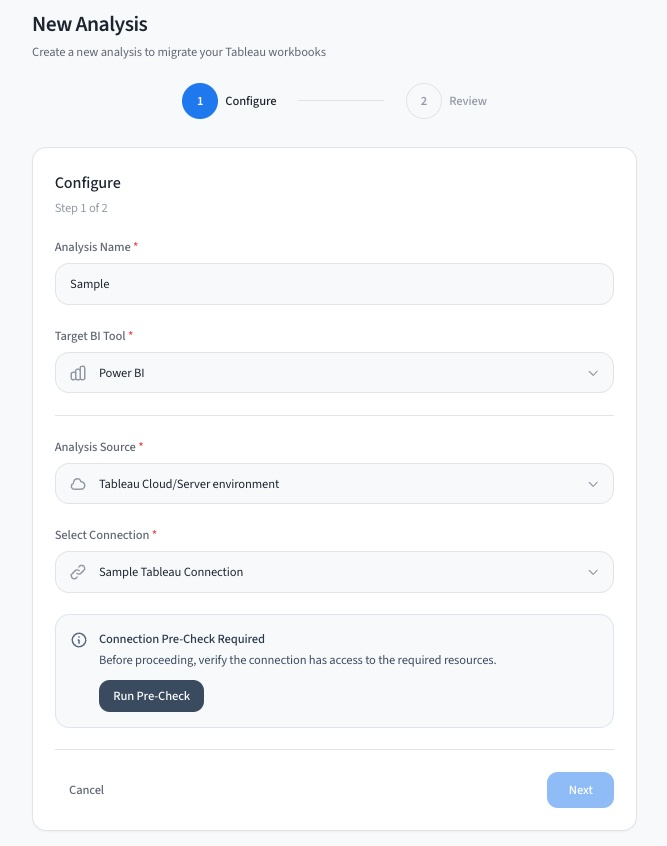
Analysis Name
Enter a readable name for this run, such as a migration wave or business area.
This name appears in the Analyzer list, analysis detail page, exports, and job context.
Target BI Tool
Choose the target BI platform for this analysis.
The selected target changes migration difficulty scoring, tier reasons, and methodology text.
Analysis Source
Choose Tableau Cloud/Server environment or Upload single Tableau workbook.
The environment path can include inventory, ownership, usage, and access context. Upload is workbook-focused.
- Connection: select an existing Tableau connection. Required only for Tableau environment analysis.
- Workbook file: upload a
.twbor.twbxfile. Required only for single workbook upload. The app applies the configured upload size limit.
Connection Pre-Check
Section titled “Connection Pre-Check”For Tableau environment analyses, run the pre-check after selecting a connection. The pre-check verifies that Antares can reach the source and tells you which report sections will be available.
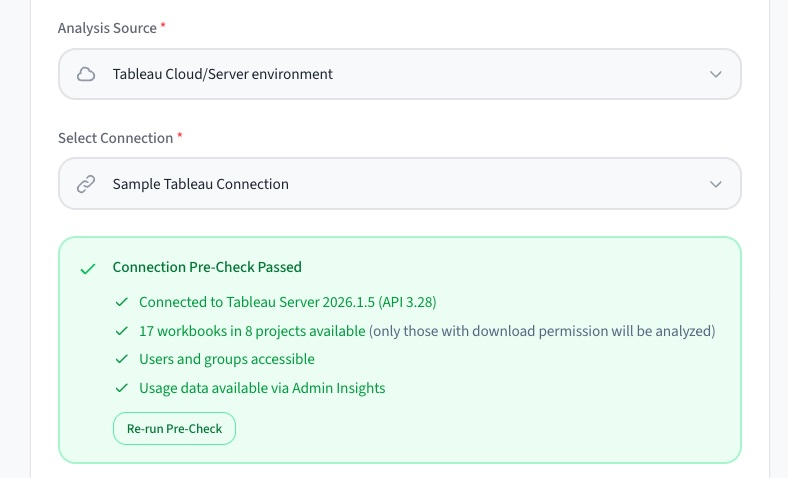
- PassedConnection, workbooks, and projects are reachable. Users, groups, and usage data may also be available depending on permissions and configuration.
- Partial accessThe core analysis can run, but optional sections such as users, groups, or usage may be skipped.
- FailedAntares could not connect to Tableau or could not access required resources. Check credentials, network access, and permissions before continuing.
The pre-check can include Tableau connectivity, workbook and project counts, workbook download access, user and group access, and usage data availability from Admin Insights or the Tableau Server repository.
Step 2: Review
Section titled “Step 2: Review”The Review step summarizes the analysis before the job starts. Confirm the analysis name, target BI tool, source type, selected connection, or uploaded workbook file.
For Tableau environment analyses, also check the environment summary and available report sections. These reflect connection access, workbook download access, and usage data availability.
After Submission
Section titled “After Submission”| Source type | What happens next |
|---|---|
| Single workbook upload | Antares opens the analysis detail page directly so you can monitor processing and review the workbook result. |
| Tableau environment | Antares creates the job, shows a success message with a link to the analysis, and returns you to the Analyzer list. |
When the job is complete, open the analysis and review the Report tab. For processing details or troubleshooting, use Logs & Info.