

Connect Tableau
A Tableau connection lets Antares analyze many workbooks from Tableau Cloud or Tableau Server instead of uploading workbooks one by one.
Use a connection when you need environment inventory, ownership context, project structure, usage signals, or migration planning across multiple workbooks.
Before you start
Section titled “Before you start”You need:
- A Tableau Cloud or Tableau Server URL.
- The Tableau site identifier.
- A Personal Access Token or JWT Connected App credentials.
- Permission to view the workbooks and projects you want Antares to analyze.
- Optional usage data access through Admin Insights or the Tableau Server Repository.
For the most complete analysis, use a Tableau identity with broad read access.
Create the connection
Section titled “Create the connection”Open Connections, choose Add Tableau Connection, and complete the wizard.
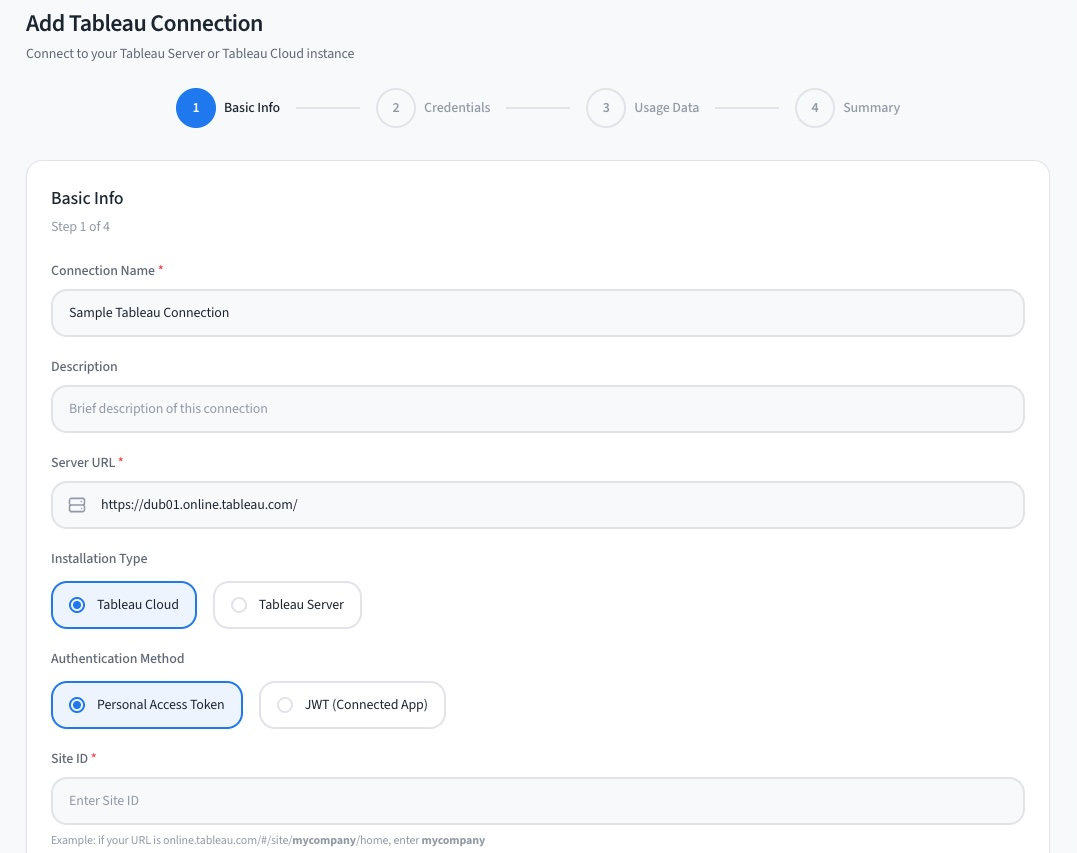
Basic Info
Enter a connection name, optional description, and the Tableau server URL.
Choose the installation type and site setting that matches your Tableau environment.
Type Site setting Tableau Cloud Enter the Site ID. For example, if the URL contains /site/mycompany/, entermycompany.Tableau Server Choose Default Site when the URL has no /site/segment. Choose Custom Site when the URL includes/site/your-site-id.Choose Personal Access Token or JWT (Connected App) authentication.
Credentials
Enter the credentials for the authentication method you selected.
Then run Test Connection. Antares verifies that it can authenticate with Tableau and reach the selected site.
A successful test shows details such as server version, API version, site name, and authenticated user.
You must pass the connection test before continuing.
Usage Data
Usage data is optional. It helps Antares show workbook activity, user activity, and content engagement.
Type Usage source Tableau Cloud Antares can use Admin Insights. Tableau Server Antares can use the Tableau Server PostgreSQL repository when repository access is configured. Summary
Review the connection details and save the connection.
After the connection is saved, use it when creating a Tableau environment analysis. Antares will run the required checks for the analysis and report which capabilities are available.
For detailed authentication, permissions, usage data, and connection status behavior, see Tableau Connections.