

Workbook Details
Workbook details show the evidence behind a workbook’s scores. Use this view when a workbook is high value, high risk, blocked, or being considered for conversion.
For single workbook uploads, the completed analysis opens directly into workbook details. For environment analyses, open workbook details from the workbook table.
Workbook Profile
Section titled “Workbook Profile”The profile section identifies the workbook and gives the first score summary. Use it to confirm you are reviewing the right workbook before investigating complexity, usage, or migration guidance.
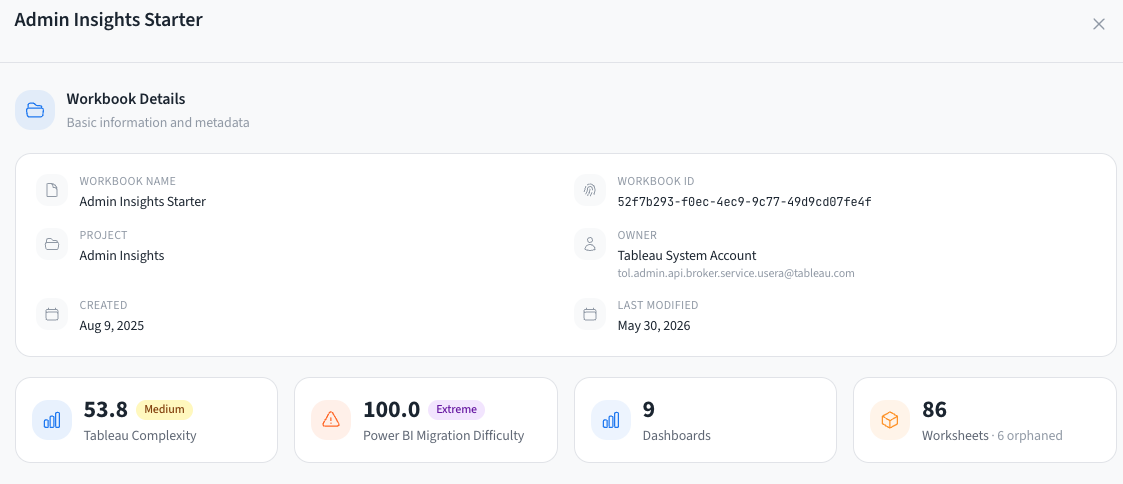
- MetadataName, workbook ID, project, owner, created and modified dates, and tags when available.
- Score cardsTableau complexity, target migration difficulty, migration tier, and top reasons behind the score.
- Workbook sizeDashboard and worksheet counts show the visible rebuild surface. Orphaned worksheets are called out when detected.
- ReasonsMigration reasons point to the features that are most likely to drive remediation or redesign effort.
Workbook Complexity
Section titled “Workbook Complexity”The complexity section explains what makes the workbook difficult. It combines high-level feature counts, field utilization, calculation type distribution, and target-specific migration considerations.
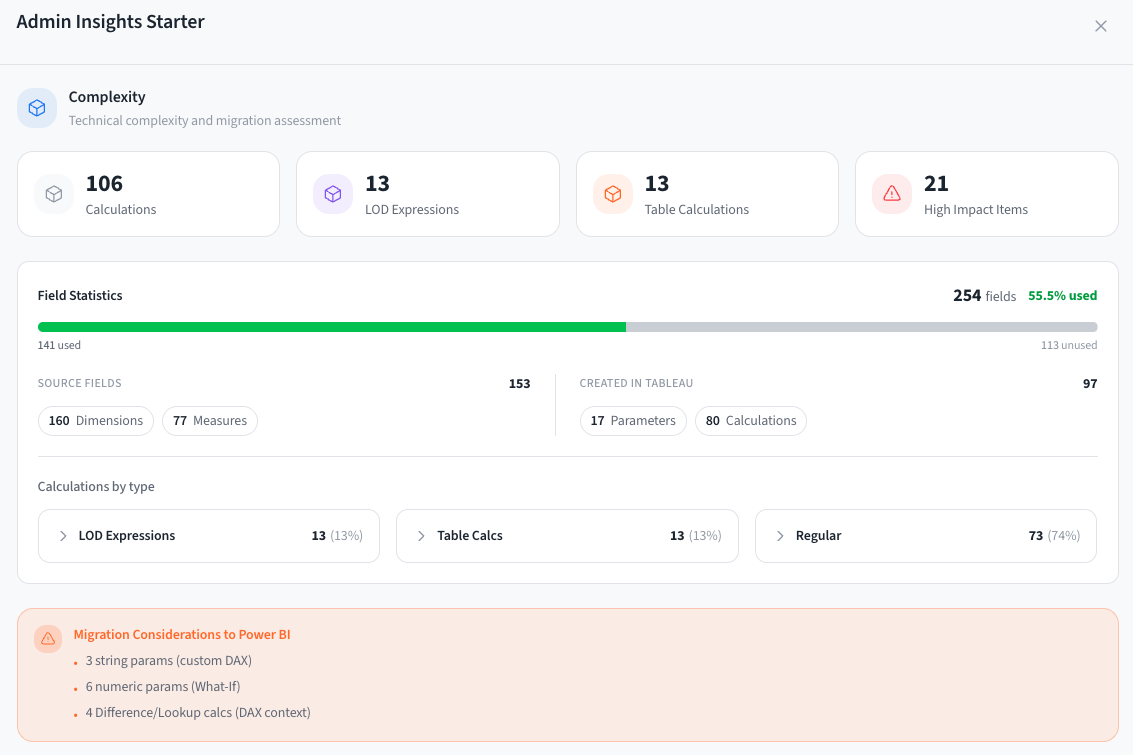
- Technical countsCalculations, LOD expressions, table calculations, and high-impact items show where validation effort will concentrate.
- Field statisticsUsed and unused field counts help identify cleanup opportunities before migration.
- Calculation mixLOD, table calculation, and regular calculation counts help teams estimate rewrite effort.
- Migration considerationsTarget-specific notes highlight the Tableau behavior that may need a workaround, redesign, or manual validation.
Components
Section titled “Components”The components table is the detailed evidence behind the complexity summary. Use it when you need to inspect individual calculations, LODs, table calculations, parameters, actions, or other workbook features.
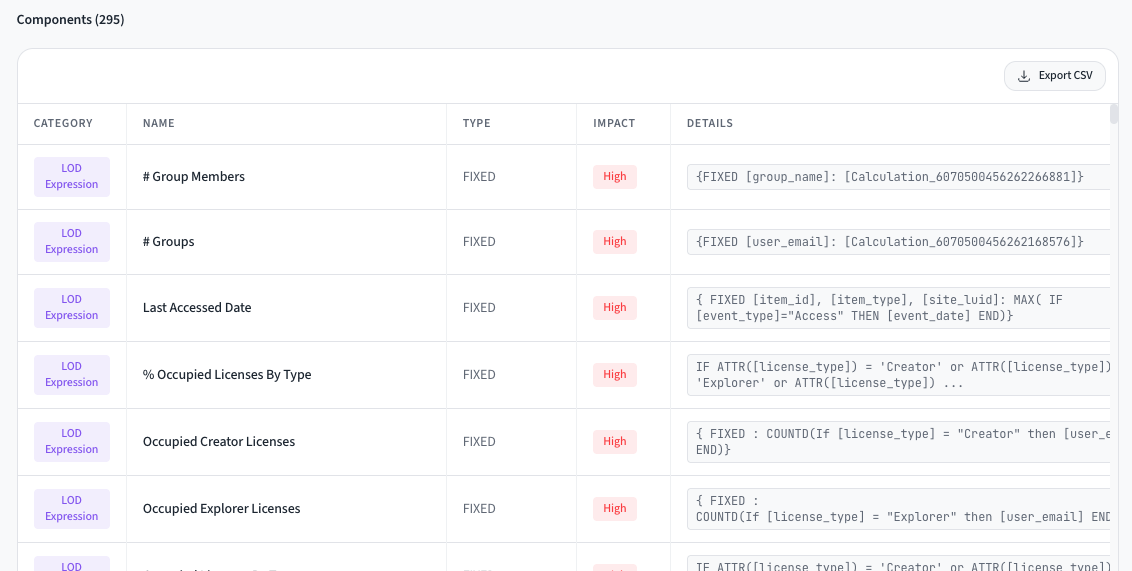
- CategoryGroups features by type, such as LOD expression, table calculation, parameter, action, or data feature.
- Name and typeShows the workbook object and its subtype, such as FIXED for LOD expressions.
- ImpactPrioritize high-impact rows first because they are more likely to affect migration scope or validation effort.
- DetailsUse formula and configuration details to plan rewrites, confirm assumptions, and export evidence for offline review.
Usage and Access
Section titled “Usage and Access”When usage data is available, workbook details include a period selector, usage trend, user list, and group access context.
| Usage signal | How to interpret it |
|---|---|
| Total views | High views can justify earlier migration or more validation effort. |
| Unique users | Shows breadth of impact across the selected period. |
| Trend | Helps distinguish actively used workbooks from stale or declining content. |
| Groups and users | Shows who may need communication, validation, or access mapping during migration. |
Recommended Review Flow
Section titled “Recommended Review Flow”- Check the Tableau and migration tiers.
- Read the migration reasons and any warnings.
- Inspect high-impact complexity components.
- Review field statistics and data source notes.
- Use usage and access context to decide priority.
- Decide whether to migrate, redesign, archive, investigate, or convert.
For scoring details, see Migration Scoring.